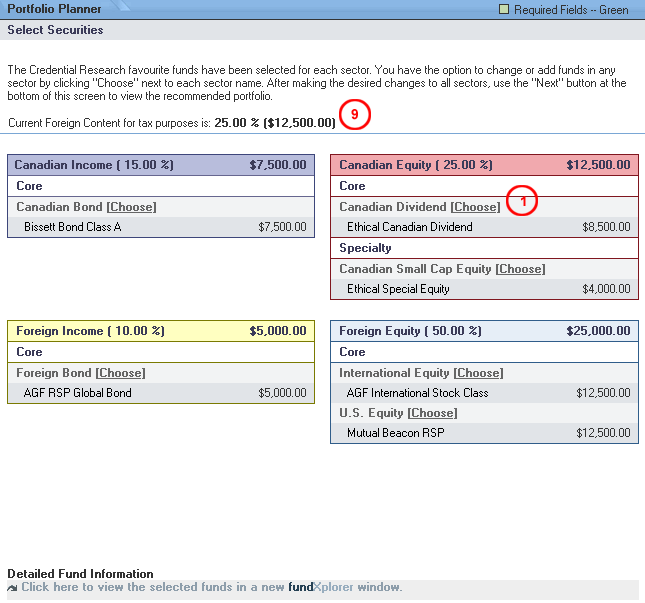
The "Select Securities" screen allows the user to select individual funds in the sectors that have been selected in the previous screen.
The screen displays:
The amount of the investments that is considered foreign content for tax purposes displayed as % of the total portfolio.
The amount of cash held.
All the selected sectors and the amount allocated to each in dollars.
You can also view the selected funds in a new FundXplorer window by clicking on the
Choose at least one or more security within each sector to satisfy the % or $ requirement for that sector:
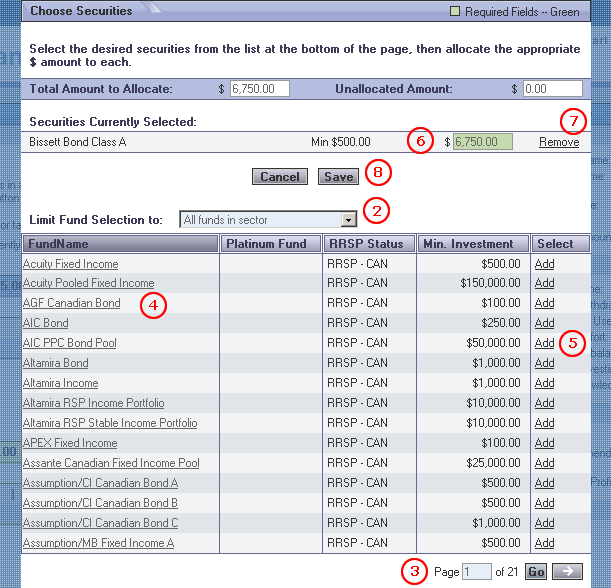
Click on the "Choose" link next to a sector name. The "Choose Securities" worksheet opens displaying two sections:
Securities currently selected
List of funds available for selection.
Use the "Limit Fund Selection" drop list to search to filter the list of funds available and to access your personal favourite funds list.
Use the page navigation buttons at the bottom of the list to move through multiple pages if required.
To view the detailed information on the fund, click on the fund name link to open a new browser window.
Click on "Add" next to a fund to add it to the "Securities Currently Selected" list. Repeat until all the desired funds are added to the selected list.
Use the allocation box in the "Securities Currently Selected" list to allocate to each of the selected funds until the "Unallocated Amount" is equal to zero.
To remove a selected fund from the list click on the "Remove" link for that fund.
Click on the "Save" button to save the selections and allocations and to return the "Select Securities" screen. Click on the "Cancel" to close the worksheet without saving an changes to the funds list in that sector and return to the "Select Securities" window.
Review the total foreign content amount indicated on the "Select Securities" screen and make adjustments to fund selection if necessary.
Viewing Selected Funds in a New FundXplorer Window
To view detailed fund information on all of the selected funds, click on the "Detailed Fund Information" link as shown in the graphic below. A new FundXplorer window opens with the selected funds displayed in the Fund Results List screen.

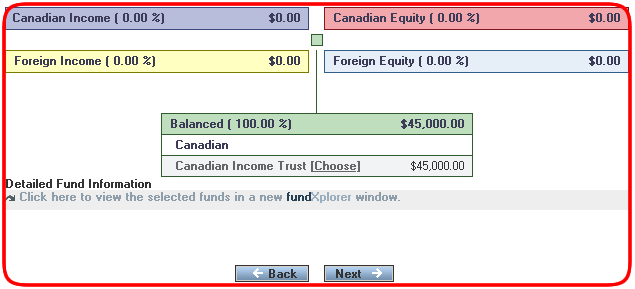
If balanced sectors have been allocated in the Balanced quadrant in the previous screen, you will automatically be presented with those sectors on this screen. Funds are chosen in the same way as they are for any other quadrant.
Here is an example where 100% has been allocated to the Trimark Income Growth Fund - SC in the Canadian Balanced sector.
Using the Credential Platinum List Funds